How to use an iMac as a monitor: every option, explained
That old iMac on your desk still has a gorgeous screen. Here's every way to turn it into a monitor for your newer Mac, what each one costs you, and which one fits your iMac.
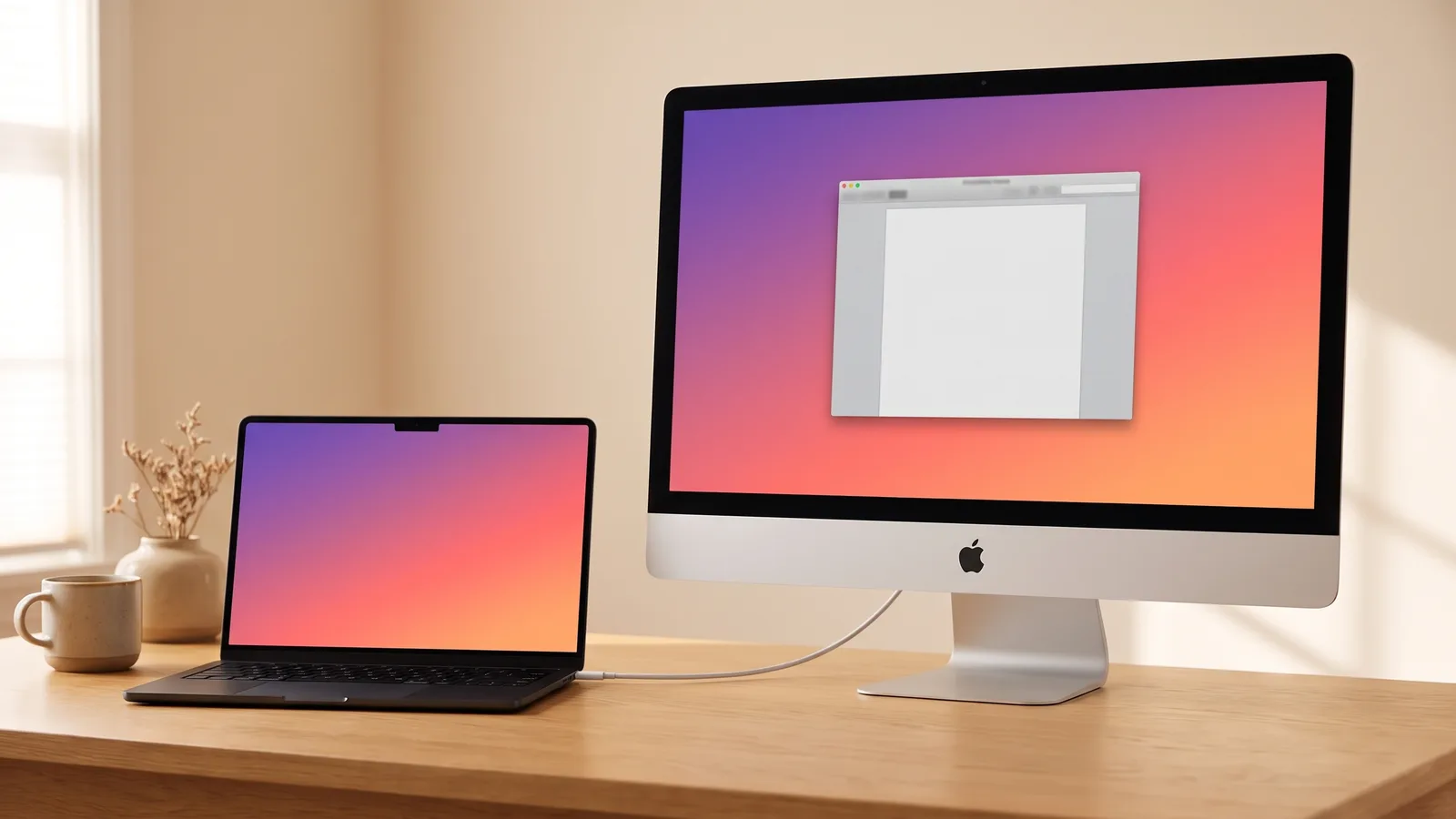
If you're reading this, you probably have an iMac that's slowing down, with a screen that's as good as ever. Maybe you remember that iMacs used to work as monitors. Maybe you've already found out that Apple's trick doesn't work anymore. And maybe you've watched a video of someone prying the glass off an iMac to fit a new board, and thought: there has to be an easier way.
There is. But first, here are all your options, honestly, with what they cost you in money, time and risk.
The short answer
Which option works for you mostly depends on two things: how old your iMac is, and whether you want to keep it as a computer. Here's everything side by side.
| Option | Works with | Cost | Effort | Picture | iMac stays a Mac? |
|---|---|---|---|---|---|
| Target Display Mode | 24- and 27-inch iMacs from 2009–2010 and all iMacs from 2011 to mid 2014, with a Mac from 2019 or earlier | A cable | Low | Sharp | Yes |
| AirPlay | iMacs from 2019 on, over Wi-Fi | Free | Low | Compressed, slight lag | Yes |
| USB dongle + app | Most Macs | An adapter plus an app | Low | Often soft text, laggy pointer | Yes |
| Hardware conversion | Most iMacs | Roughly $160 to $370 in parts and tools | A weekend, real risk | Sharp | No |
| Encore | Intel iMacs from Late 2012 on, with a Mac on macOS 13 or later | $49 once | One cable, two minutes | Sharp, up to 60 fps | Yes |
1. Target Display Mode: Apple's old way
Apple used to have a built-in feature for exactly this. Connect a cable, press Command + F2 on the iMac, and it became a monitor for your other Mac.
According to Apple, it works on 24- and 27-inch iMacs from 2009 and 2010 (with a Mini DisplayPort cable) and on iMacs from 2011 to mid 2014 (with Thunderbolt), as long as the iMac runs macOS High Sierra or earlier. The Mac you connect has to be from 2019 or earlier with macOS Catalina or earlier (Apple Support, retrieved October 2026).
That rules out two big groups: every Retina 5K iMac, which never had the feature, and every MacBook with Apple silicon. If your iMac and your other Mac are both old enough, it's free and the picture is perfect. Which iMacs have Target Display Mode, and how to turn it on.
2. AirPlay: wireless, but compressed
Newer iMacs can receive AirPlay, so you can send your MacBook's screen to them over Wi-Fi from Control Center › Screen Mirroring. Apple supports this on iMacs from 2019 and iMac Pro, with macOS Monterey or later (Apple macOS User Guide). It costs nothing and it's handy for showing photos on a big screen.
For a full working day it's less great. The picture is compressed to fit through Wi-Fi, so small text looks soft and the pointer trails a little behind your hand. And if your iMac is from before 2019, it won't show up at all. If yours is missing from the list, this is why your iMac doesn't appear in Screen Mirroring.
3. A USB dongle and an app
Some products pair a small adapter for your Mac with an app on the iMac. They work with lots of Macs, and you don't have to open anything.
The trade-off: the picture is squeezed to fit through the adapter, so text can go soft when a lot changes on screen, and the pointer can trail a little behind your hand. It's also one more gadget to keep plugged in and carry around. The adapter makes them cost more than software on its own.
4. The hardware conversion
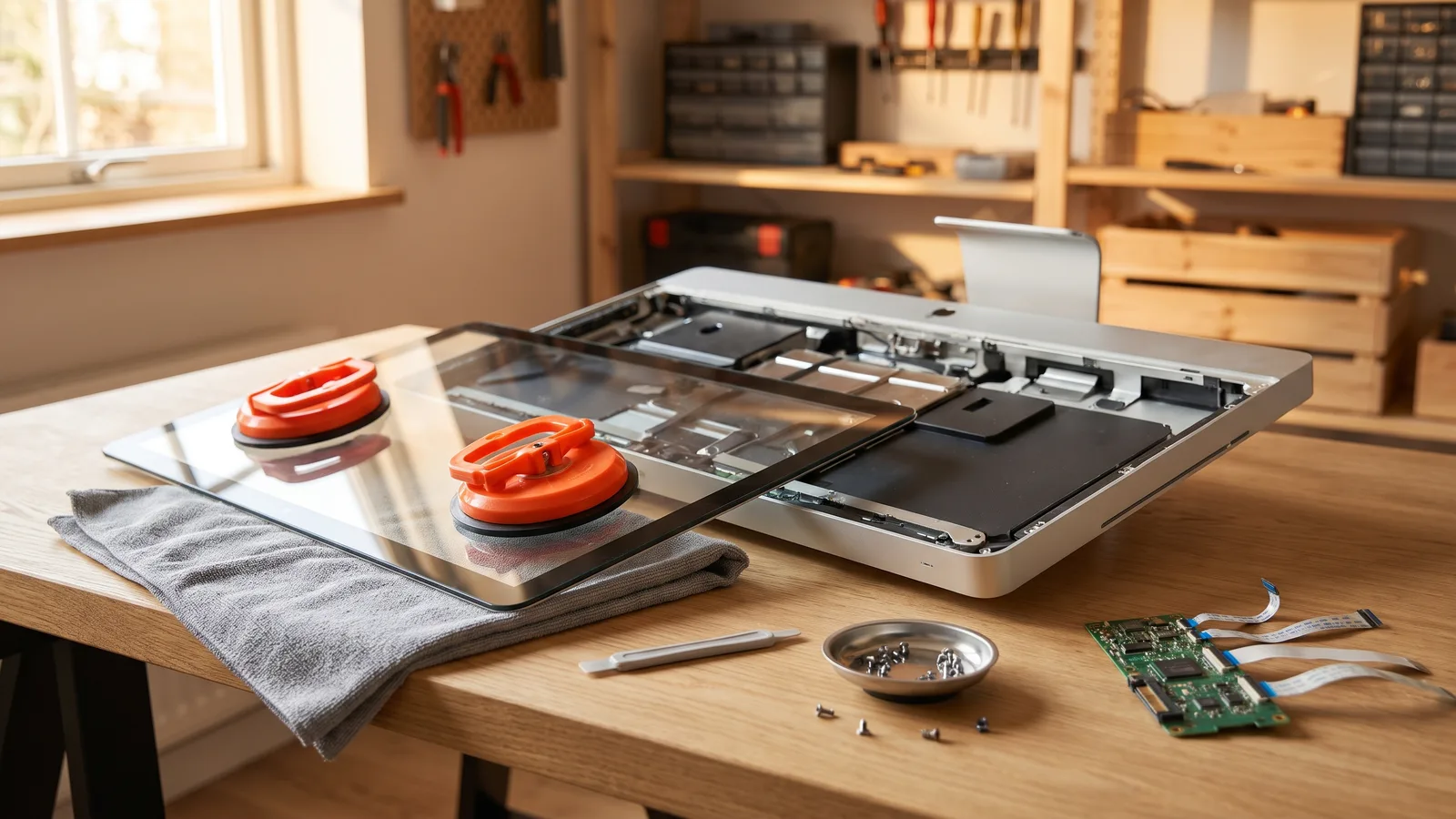
This is the one from the teardown videos. You open the iMac by cutting the adhesive that holds the glass, take out the logic board and most of the insides, and fit a driver board (sometimes called an LCD controller board) bought online, often from AliExpress or eBay. For a 5K iMac, the board alone is listed at about $171, before the power supply and other parts (Cult of Mac).
Done well, you get a true monitor with a perfect picture that even works with a PC. But it's a weekend project with real risks: the large glass panel can crack, the board has to match your exact panel, and when you're done, your iMac isn't a computer anymore. There's no easy way back. What an iMac conversion really involves, step by step.
5. Encore: software and a cable
I built Encore after going down this exact road myself. You install it on your Mac and on your iMac, plug in one cable, and your iMac shows up as a real display, just like a monitor you'd buy. Try it below: drag the window from the MacBook onto the iMac.
Things to try
- Drag this window onto the iMac
- Play the video from the dock
- Watch it full screen
- Resize a window from its corner
- Unplug the cable
All done. That's how a real second monitor feels.
Connected to iMac
- Display
- iMac (Retina 5K, 27-inch)
- Cable
- USB-C
- Frame rate
- 60 fps
The cable was disconnected.
Here's what that means day to day:
- It works with almost every iMac you might have: every Intel iMac from Late 2012 on, 21.5-inch and 27-inch, Retina or not, and iMac Pro. Check your model.
- Your other Mac needs macOS 13 Ventura or later. Any MacBook, Mac mini, Mac Studio or Mac Pro with Apple silicon can use any of the cables. Intel Macs connect over Thunderbolt or Ethernet.
- It looks like a monitor: text is sharp at your iMac's full resolution, up to 5K, and windows move at up to 60 frames per second.
- It behaves like a monitor: you arrange it in System Settings › Displays, and it sleeps and wakes with your Mac.
- It sounds like one with speakers: sound can come from the iMac, and your volume keys control it. The iMac's brightness can follow your MacBook's.
- Nothing is opened: unplug the cable and your iMac is a normal Mac again. Sell it, hand it on, or keep it as a spare.
- The cable is often one you already have: USB-C to USB-A for iMacs from 2012 to 2015, USB-C or Thunderbolt for newer ones. Ethernet works too (most MacBooks need a USB-C Ethernet adapter for that).
On my own desk, with a MacBook Pro and a 27-inch 5K iMac on a USB-C to USB-A cable, the picture shows up about two seconds after plugging in, and video plays at 57 to 58 frames per second. One thing Encore can't do: the newer iMacs with Apple silicon (the colourful 24-inch ones) aren't supported. For those, AirPlay is the only built-in option.
Encore
Your old iMac. Now a monitor.
Free for 72 hours · then $49 once · no subscription · for Macs on macOS 13 or later
So which one should you pick?
- Your iMac is a 24- or 27-inch model from 2009–2010, or any iMac from 2011 to mid 2014, and your other Mac is from 2019 or earlier: try Target Display Mode first. It's free.
- Your iMac is from 2019 or later, and you only need it now and then, wirelessly: AirPlay is fine.
- Your iMac's computer is broken, or you want a monitor for a PC: a hardware conversion is the way, if you're comfortable opening it.
- You want your iMac to work like a real monitor for your Mac tonight, without opening it: that's what Encore is for.
It's also worth thinking about what happens otherwise. The world produced 62 million tonnes of electronic waste in 2022, and only about 22% of it was documented as properly recycled (UNITAR, Global E-waste Monitor 2024). A working screen that stays on your desk is one less in that pile.
It's also a lot of screen to leave unused. When Apple launched its own 27-inch 5K monitor, the Studio Display, in March 2022, it cost $1,599 (Apple Newsroom). A Retina 5K iMac has a panel with the same resolution.
Will Encore work with your iMac?
Choose your old iMac and the Mac you work on.
Set it up in two minutes
- Check your iMac: on the iMac, choose Apple menu › About This Mac and find it in our compatibility list.
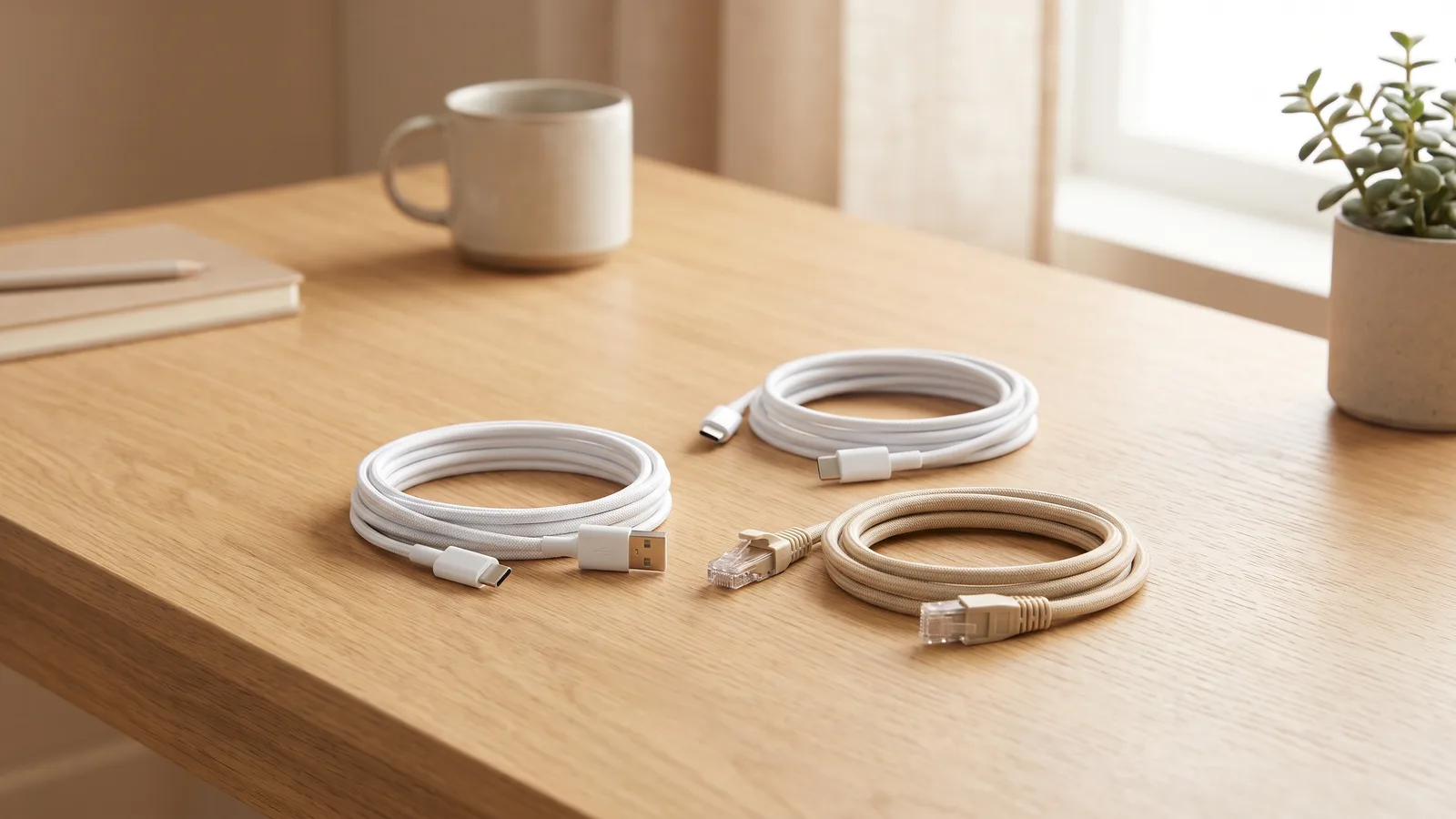
- Get the cable: USB-C to USB-A for iMacs from 2012 to 2015, USB-C or Thunderbolt for newer ones, or Ethernet for any iMac.
- Install Encore on both Macs and open it on the iMac first.
- Open Encore on your Mac (macOS 13 Ventura or later) and allow screen recording when macOS asks.
- Plug in the cable. Your desktop appears on the iMac about two seconds later.
Using a MacBook? Our MacBook setup guide covers closed-lid use, sound and brightness. Want it as an extra screen next to your laptop? See using your iMac as a second monitor.
Questions people ask
Can any iMac be used as a monitor?
Not with Apple's own tools anymore. Apple's Target Display Mode only works on 24- and 27-inch iMacs from 2009–2010 and all iMacs from 2011 to mid 2014, together with a Mac from 2019 or earlier. For newer iMacs, your options are AirPlay (iMacs from 2019 on, over Wi-Fi), a USB dongle app, a hardware conversion, or software like Encore with a cable.
What's the easiest way to use an iMac as a monitor?
For an Intel iMac from Late 2012 or newer, install Encore on both Macs and connect them with one cable. It takes about two minutes and nothing has to be opened.
Do I need to open my iMac to use it as a monitor?
No. Opening the iMac is only needed for a hardware conversion with a driver board. Software options like Encore work with the iMac as it is.
Will my iMac still work as a computer afterwards?
With Target Display Mode, AirPlay, dongle apps and Encore, yes: unplug the cable and it's a normal Mac. After a hardware conversion, no: the computer parts are removed.
Can I use an iMac as a monitor for a Windows PC?
Only the 27-inch iMacs from 2009 and 2010 accept a video signal from a PC. Newer iMacs need a hardware conversion for that. Encore is Mac only for now. Using an iMac with a PC.