How to use your iMac as a second monitor
Two screens change how you work. If there's an iMac on your desk, you already own the second one. Here's how to use it as an external monitor for your Mac, step by step.
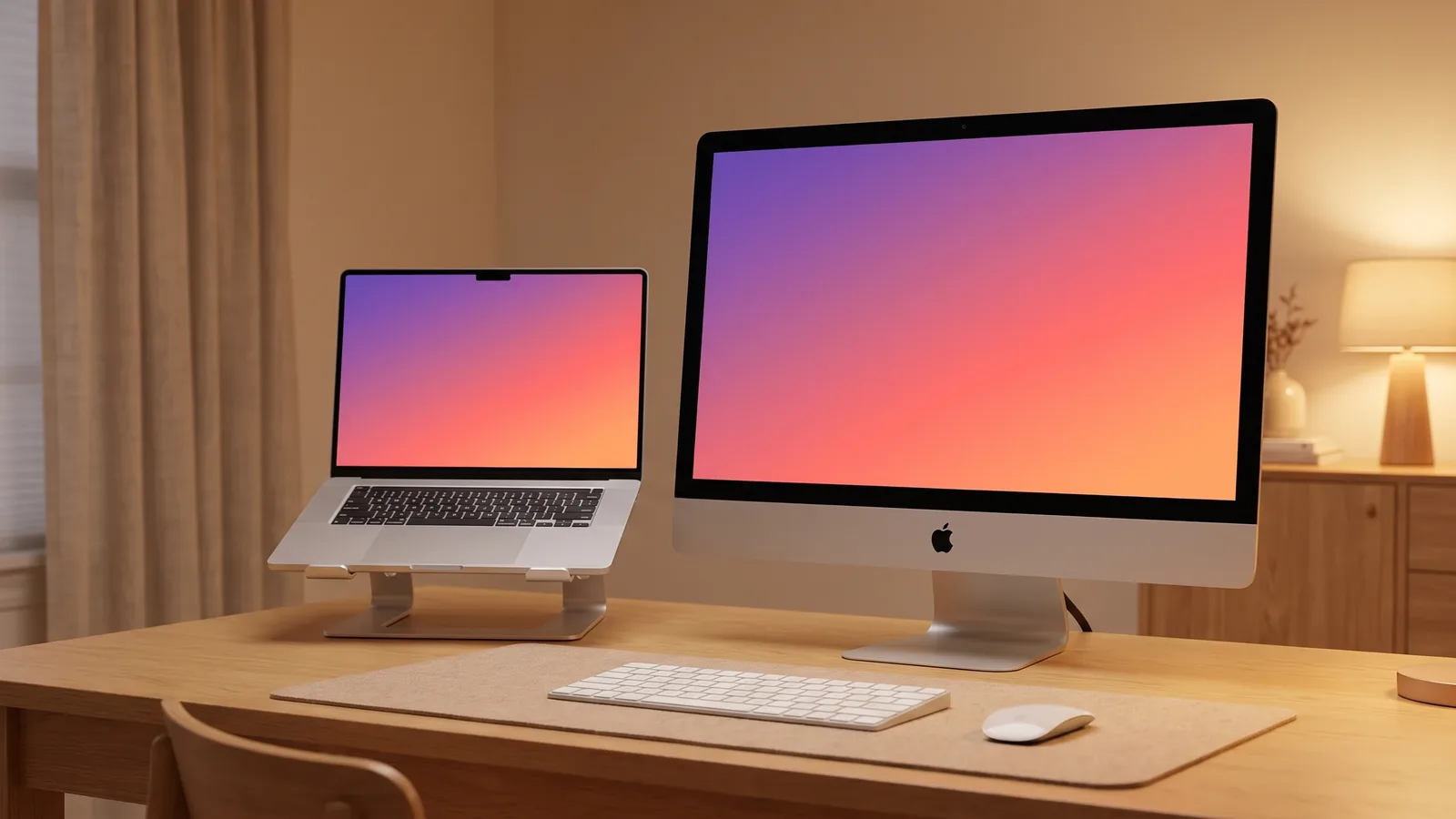
Most people want the same thing: keep working on their MacBook or Mac mini, and put the iMac's big screen next to it as a second display. Drag your browser over, keep your notes on the laptop, spread out a timeline or a spreadsheet. Here's how to get there in a few minutes.
Step 1: check that your iMac can do it
- Any Intel iMac from Late 2012 on works with Encore and one cable, 21.5-inch or 27-inch, Retina or not. See every model.
- 24- and 27-inch iMacs from 2009–2010 and all iMacs from 2011 to mid 2014 also have Apple's Target Display Mode, but only with a Mac from 2019 or earlier.
- iMacs from 2019 on can receive AirPlay over Wi-Fi, which is fine for a quick look but compressed for daily work.
Not sure which is best for you? Compare every option.
Check your iMac and cable
Choose your old iMac and the Mac you work on.
Step 2: get the right cable
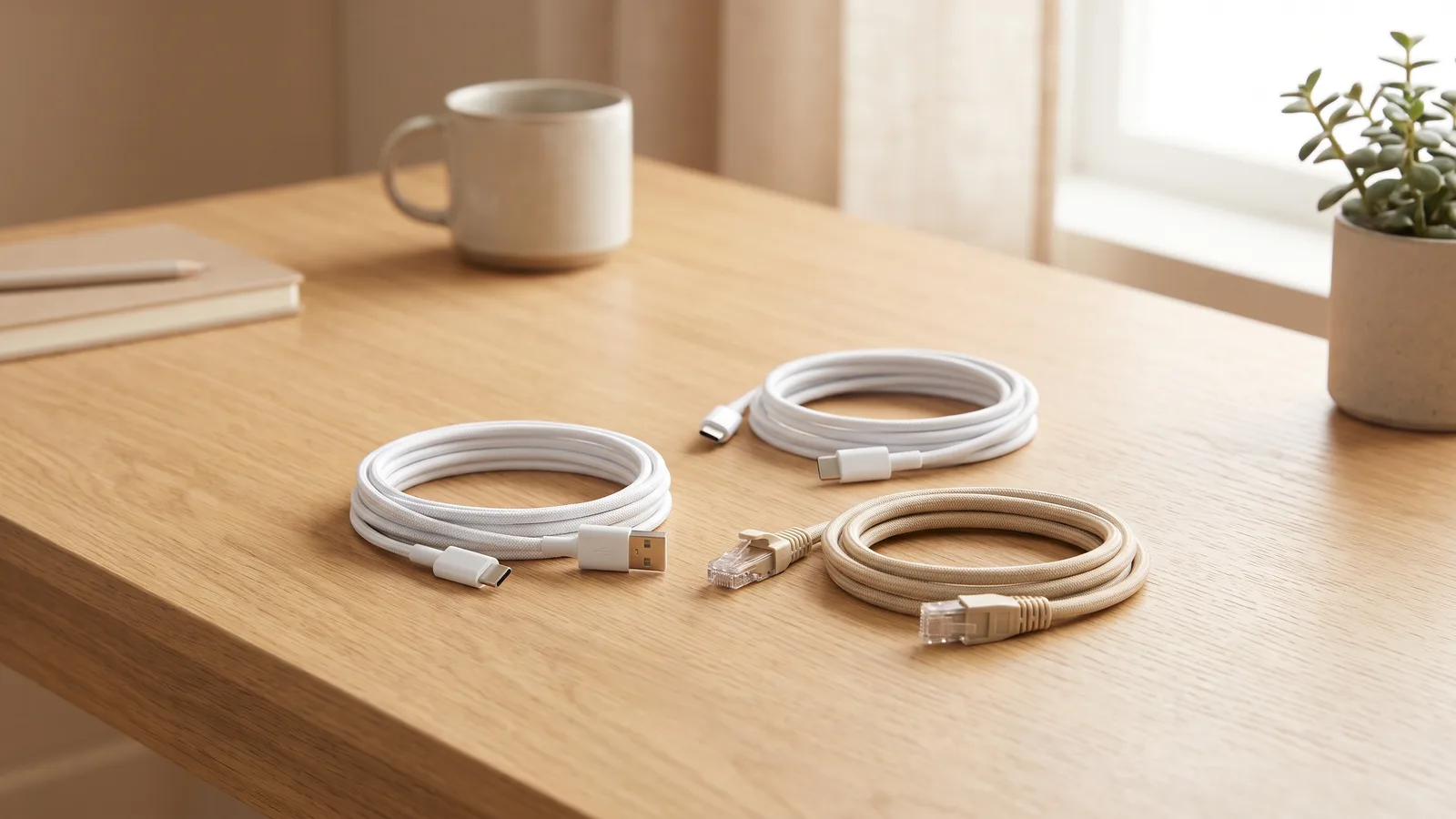
| Your iMac | Cable |
|---|---|
| 2012 to 2015 (rectangular USB ports) | USB-C to USB-A, into one of the iMac's USB ports |
| 2017 to 2020 (oval Thunderbolt 3 ports) | USB-C to USB-C, or a Thunderbolt 3/4 cable |
| Any iMac | An Ethernet cable straight between the two Macs |
Pick a cable made for data: it should say 10 Gbps, USB 3.2 Gen 2 or Thunderbolt. Many cables that come with phones only charge.
Step 3: set it up
- Install Encore on both Macs and open it on the iMac.
- Open it on your Mac and allow screen recording when macOS asks. Encore only records your screen to send it over the cable.
- Plug in the cable. The iMac turns into your second screen about two seconds later.
Step 4: arrange it like any monitor
- Extend or mirror: open System Settings › Displays. By default the iMac extends your desktop. Choose Mirror if you want the same picture on both.
- Put it where it stands: in the arrangement view, drag the iMac's box to the left or right of your Mac so the pointer moves across naturally.
- Make it the main display: move the menu bar onto the iMac, and new windows open there.
- Pick the text size: choose "Larger Text" or "More Space", just like with a store-bought monitor.
Using it as your only monitor
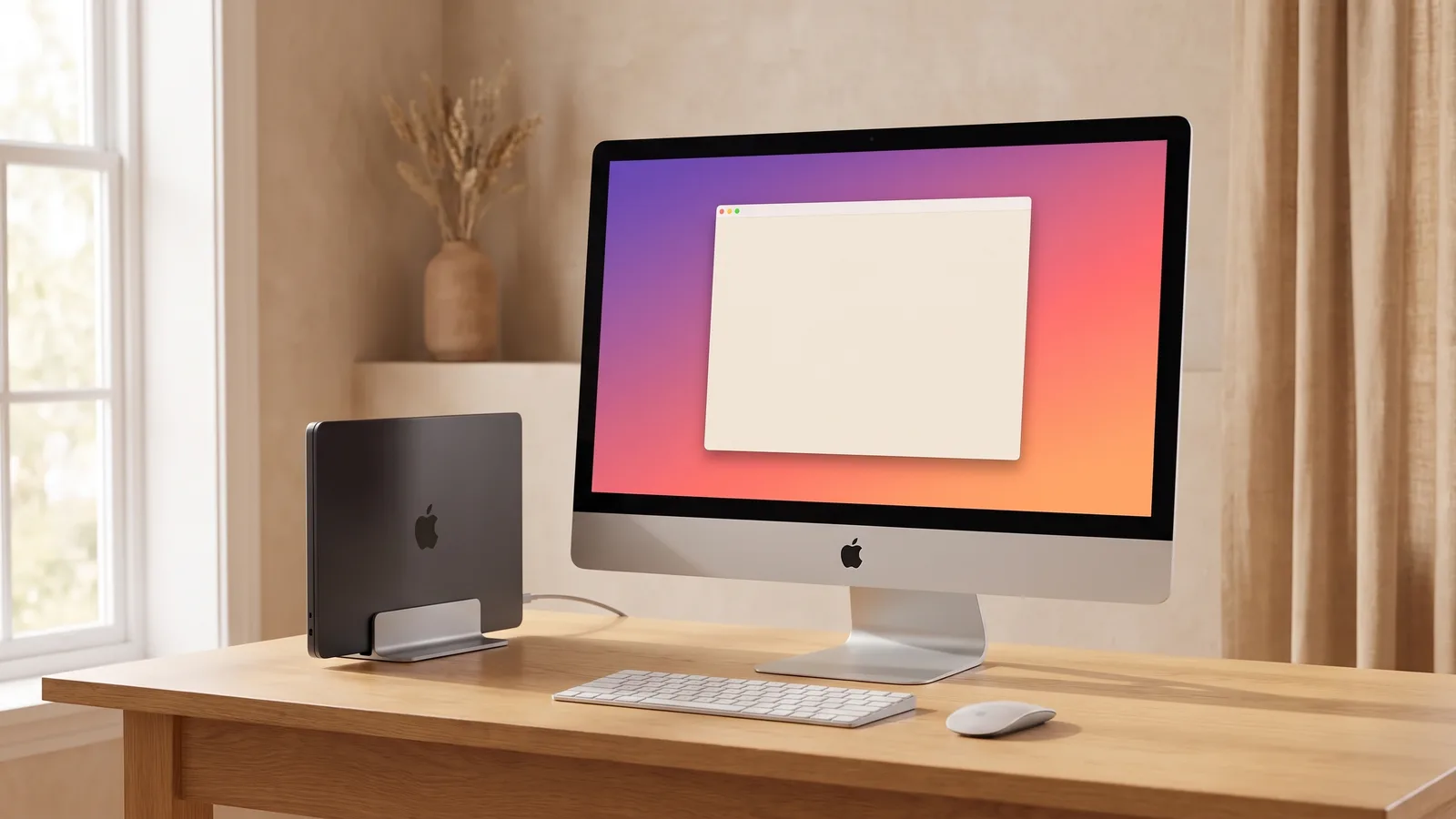
Close your MacBook while it's charging, and the iMac becomes your only screen, the way any external monitor works. Add a keyboard and mouse (the iMac's own wireless ones work if you pair them with your MacBook), and you've got a big desktop setup from things you already own.
Little things that make it feel like a real monitor
- Sound through the iMac's speakers, with your Mac's volume keys.
- Brightness that follows your MacBook, and Night Shift on both screens.
- Sleep and wake: the iMac goes dark when your Mac sleeps and comes back when it wakes.
- Unplug and go: windows move back to your MacBook when you unplug, like with any monitor.
Encore
Your old iMac. Now a monitor.
Free for 72 hours · then $49 once · no subscription · for Macs on macOS 13 or later
Questions people ask
Can I use my iMac as a second monitor for my MacBook?
Yes. With Encore and one cable, any Intel iMac from Late 2012 on becomes a second display for a Mac on macOS 13 or later. It extends your desktop just like a monitor you'd buy.
Can I use an iMac as an external monitor without a cable?
Only iMacs from 2019 on can receive AirPlay over Wi-Fi. It works, but the picture is compressed, so text is softer and the pointer lags a little. A cable gives a sharp, smooth picture.
How do I extend my desktop to my iMac instead of mirroring it?
Open System Settings › Displays on your Mac. Extended is the default; choose Mirror only if you want the same picture on both screens.