Target Display Mode: which iMacs have it, and what to use instead
Target Display Mode let an iMac act as a monitor for another Mac. Apple stopped it with the Retina iMacs, and it doesn't work with today's MacBooks.
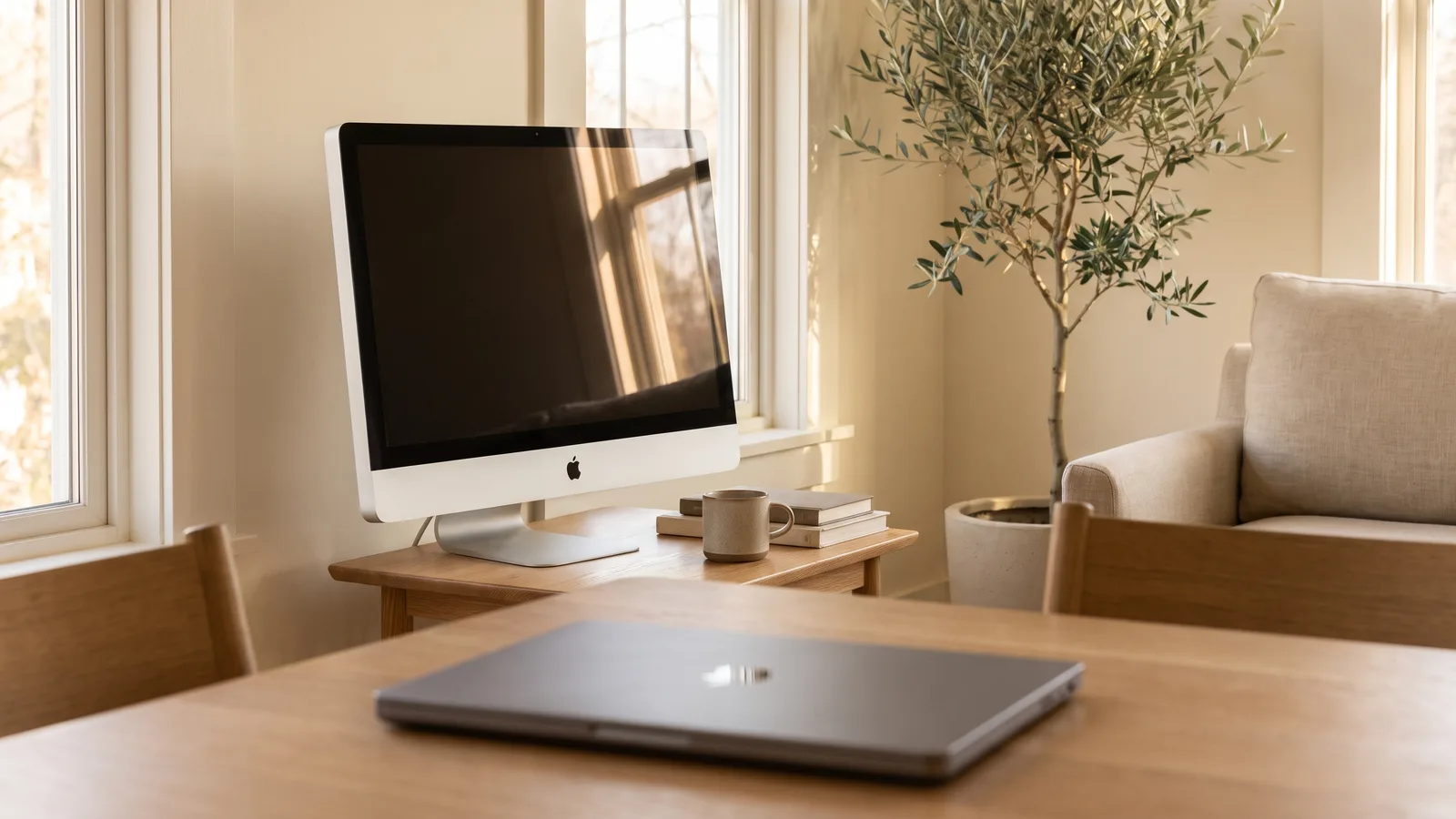
Which iMacs have Target Display Mode
| iMac | Cable |
|---|---|
| 24-inch and 27-inch iMacs from 2009 and 2010 | Mini DisplayPort |
| iMacs from 2011, 2012, 2013 and mid 2014 | Thunderbolt or Thunderbolt 2 |
According to Apple, the iMac also has to run macOS High Sierra or earlier, and the Mac you connect has to be from 2019 or earlier with macOS Catalina or earlier (Apple Support, retrieved October 2026).
How to turn it on
- Turn on both Macs and log in on the one you work on.
- Connect them with the right cable from the table.
- On the iMac's keyboard, press Command + F2 (or Command + Fn + F2).
Why it doesn't work on newer iMacs
The Retina 5K iMac from Late 2014 and every iMac after it never had Target Display Mode. Its screen has more pixels than a single cable could carry back then, so Apple dropped the feature. Today's MacBooks with Apple silicon can't use it with any iMac.
Common problems
- Nothing happens after Command + F2: check the iMac runs High Sierra or earlier and that you're using a Thunderbolt or Mini DisplayPort cable, not a USB-C charging cable.
- It worked before a macOS update: if either Mac was updated past the versions above, Target Display Mode stops working.
- Your MacBook has Apple silicon: it can't use Target Display Mode with any iMac.
What to use instead
Encore does the same job in software for every Intel iMac from Late 2012 on, including the Retina 5K and 4K models. Install it on both Macs, plug in one cable, and the iMac becomes a real display for your Mac, with sharp text, smooth video and sound. Set it up with your MacBook, or compare every option.
Encore
Your old iMac. Now a monitor.
Free for 72 hours · then $49 once · no subscription · for Macs on macOS 13 or later